




The artificial intelligence landscape has seen a significant shift as Claude, an AI assistant from Anthropic, surged to the top of Apple’s U.S. App Store rankings, displacing longtime leader ChatGPT. This change follows a period of intense debate over the ethical use of AI in military applications, which has drawn a sharp contrast between the two companies.
The controversy centers on differing policies regarding collaboration with the Department of Defense. While ChatGPT's parent company, OpenAI, recently announced an agreement with the Pentagon, Anthropic publicly stated its refusal to allow its models to be used for mass domestic surveillance or fully autonomous weapons systems.
Key Takeaways
- Claude has become the number one free app on the U.S. Apple App Store, surpassing ChatGPT.
- The shift coincides with OpenAI's new partnership with the Pentagon, a move that has sparked ethical debates among users.
- Anthropic, Claude's developer, has refused to allow its AI to be used for certain military applications, creating a clear distinction for consumers.
- Users are actively migrating their data from ChatGPT to Claude, and this guide explains the process.
A Tale of Two AI Policies
The recent surge in Claude's popularity is directly linked to recent policy decisions from the AI sector's leading companies. OpenAI confirmed a new partnership with the Pentagon, stating that safeguards were in place. However, the announcement still raised concerns among users about privacy and the weaponization of artificial intelligence.
In contrast, Anthropic's stance against using its technology for specific military purposes has resonated with a segment of the user base. This decision prompted a swift reaction from the government, with President Trump ordering federal agencies to cease using Anthropic's products. Additionally, Defense Secretary Pete Hegseth announced intentions to label the company a supply-chain threat.
Anthropic reports that since the controversy began, its daily sign-ups have reached record highs. The company has seen its free user base grow by more than 60% since January, and the number of paid subscribers has more than doubled this year.
This divergence in corporate ethics has become a deciding factor for many individuals, leading to a migration of users from one platform to another.
Making the Switch: How to Move Your Data to Claude
For those considering a move from ChatGPT to Claude, preserving years of conversations and personalized settings is a primary concern. The process involves exporting your data from ChatGPT and then importing it into Claude's memory.
Step 1: Exporting Your ChatGPT History
There are several methods to retrieve your information from ChatGPT. The most comprehensive option is a full data export.
- Navigate to Settings in your ChatGPT account.
- Select Data Controls from the menu.
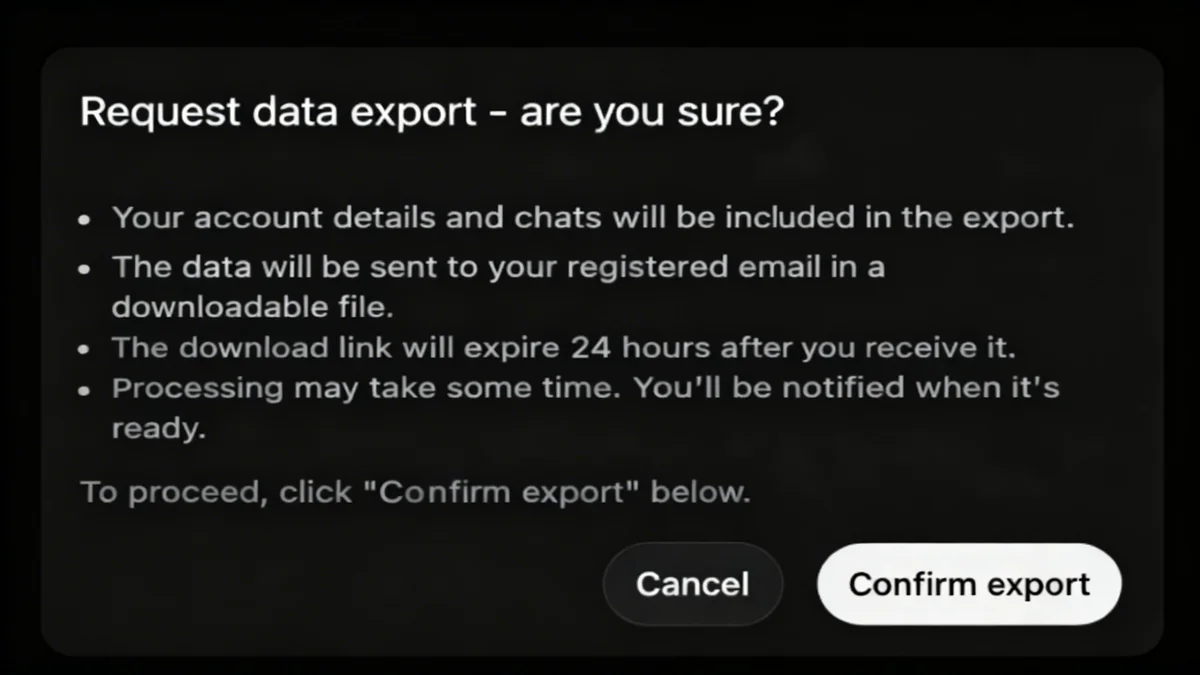
- Choose the “Export Data” option.
ChatGPT will then compile your entire chat history and send it to your registered email address. This process can take some time depending on the volume of your saved conversations. The data will arrive in either text or JSON file formats.
A more targeted approach involves managing your personalized memory.
- Go to Settings, then Personalization.
- Find the Memory section and click “Manage.”
- Here, you can review, edit, and copy the specific preferences and information ChatGPT has stored about you.
For a quicker manual transfer, you can simply copy and paste key conversations or ask ChatGPT to provide a summary of your primary interests, frequently discussed topics, and any custom instructions you have set up.
Step 2: Importing Your Preferences into Claude
Once you have your data, integrating it into Claude is a straightforward process designed to get the new AI up to speed on your needs quickly.
Note on Claude's Memory: The memory feature, which allows Claude to retain user preferences and context across conversations, is available to both free and paid users. Ensure it is enabled before you begin.
To start, open Claude and go to Settings, then Capabilities, and confirm that Memory is toggled on.
Next, begin a new conversation. Use a clear prompt to instruct the AI. For example:
“Here is some important context I would like you to remember. Please update your memory about me with the following information.”
After the prompt, paste the summaries or personalized data you copied from ChatGPT. If you used the full data export feature, do not paste the raw text or JSON files. Instead, upload the file and ask Claude to process it with a prompt like, “Please review this file of my previous conversations and summarize my key preferences and interests.”
It is a good practice to ask Claude to confirm what it has learned to ensure the information has been stored accurately.
How to Permanently Delete Your ChatGPT Account
For users who want to make a complete break, simply canceling a paid subscription is not enough to remove your data from OpenAI's servers. A full account deletion is required.
First, it's wise to clear any personalized data the AI has stored.
- Return to Settings and then Personalization.
- Select Memory and delete any stored information.
- As a final command in a chat window, you can type: “Delete all my memory and personalized data.”
After clearing your memory, you can proceed with deleting the account itself. This option is found within your account management settings. Following these steps ensures your data is permanently removed from the platform.